3:34 video + guide

Collect reviews and follow up on feedback

Reviews and private feedback give customers an honest next step after an experience with your business. Use the page to encourage public recommendations while giving concerns a private path to your team.

Where to find it

Follow this path in BusinessStub

  1. 1Open workspace
  2. 2Marketing
  3. 3Reviews & feedback
Open this area in your workspace →

Product examples

What this looks like

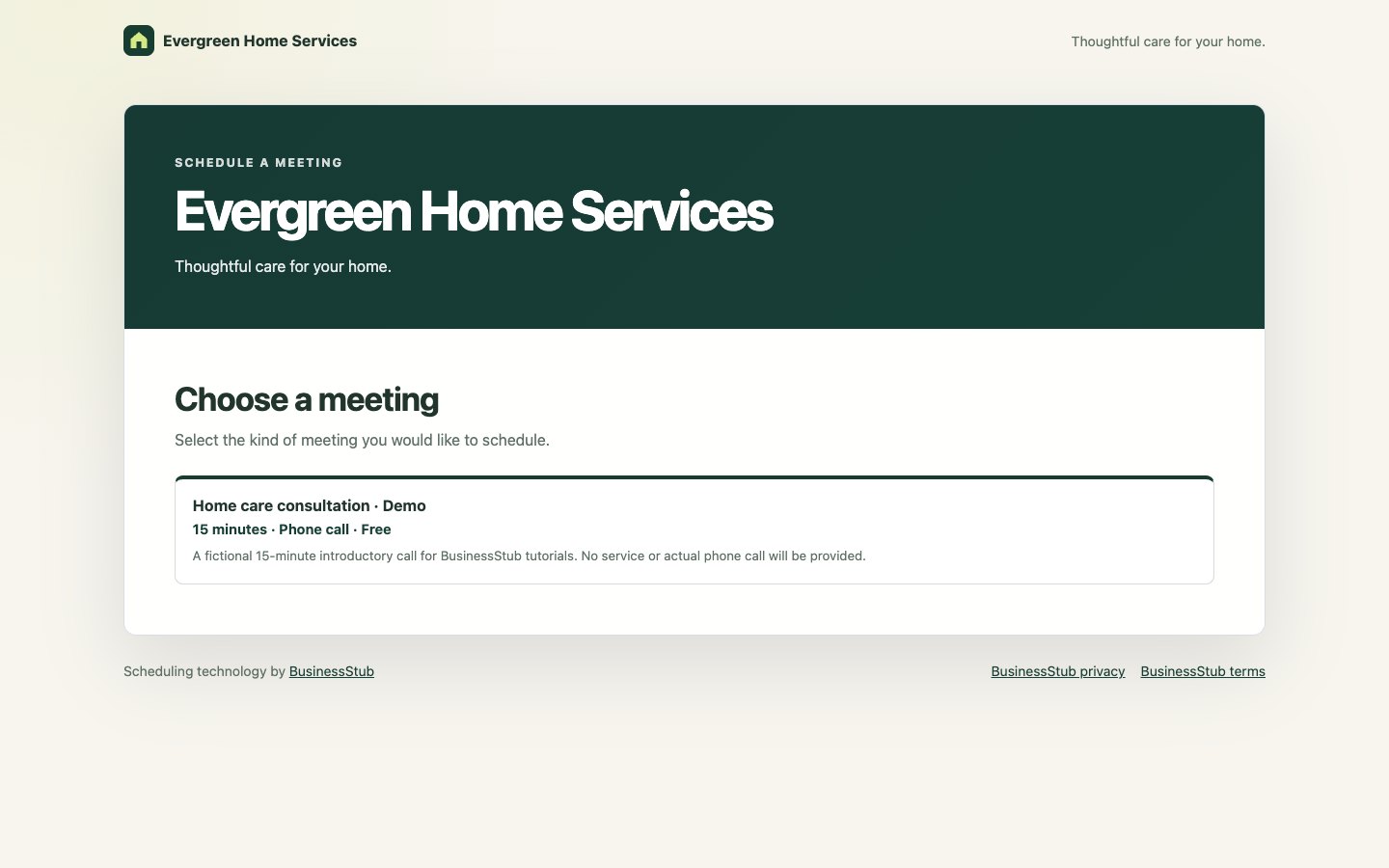
Customers can choose the path that matches their experience before leaving a public review or sending private feedback.

The recording uses a fictional business. Choose your own business before following along. Reviews & feedback must be enabled first. The tutorial professionally blurs the real permanent page link and QR code.

01

Start with the right business

Reviews & feedback needs to be enabled, and at least one public review destination must be ready. Open every link yourself and make sure it belongs to the right business and location.

Inside your workspace
The workspace shows whether the feedback page is ready and where follow-up happens.
02

Make the feedback page feel like you

Choose whether the page is active and check the saved branding. Draft and Paused pages keep their permanent link, but they will not accept new responses.

03

Test the link before you print the QR code

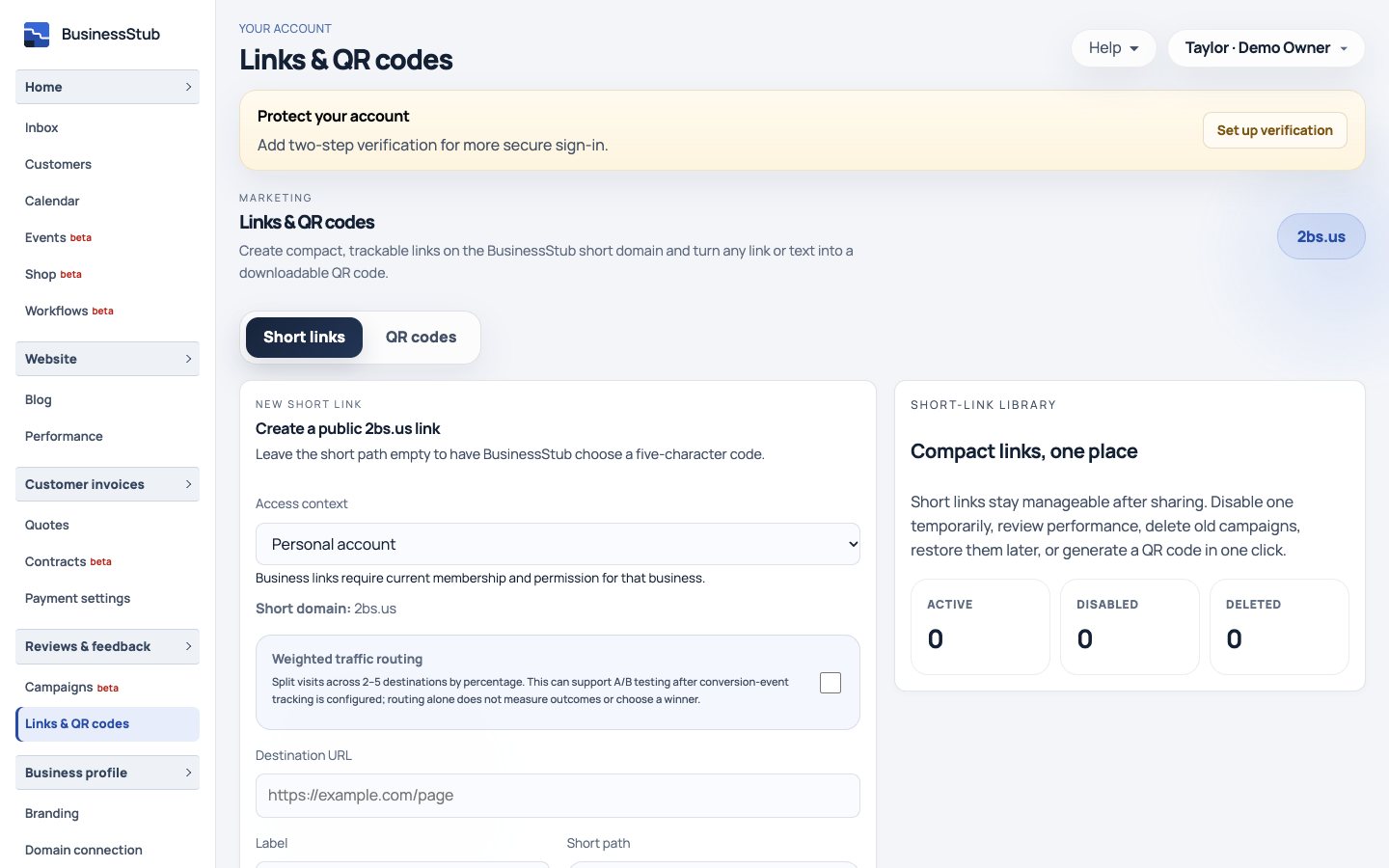
Open the permanent link and scan the downloaded QR code with your own phone. It is much nicer to catch a wrong destination now than after 500 cards have been printed.

04

Treat private feedback like a conversation

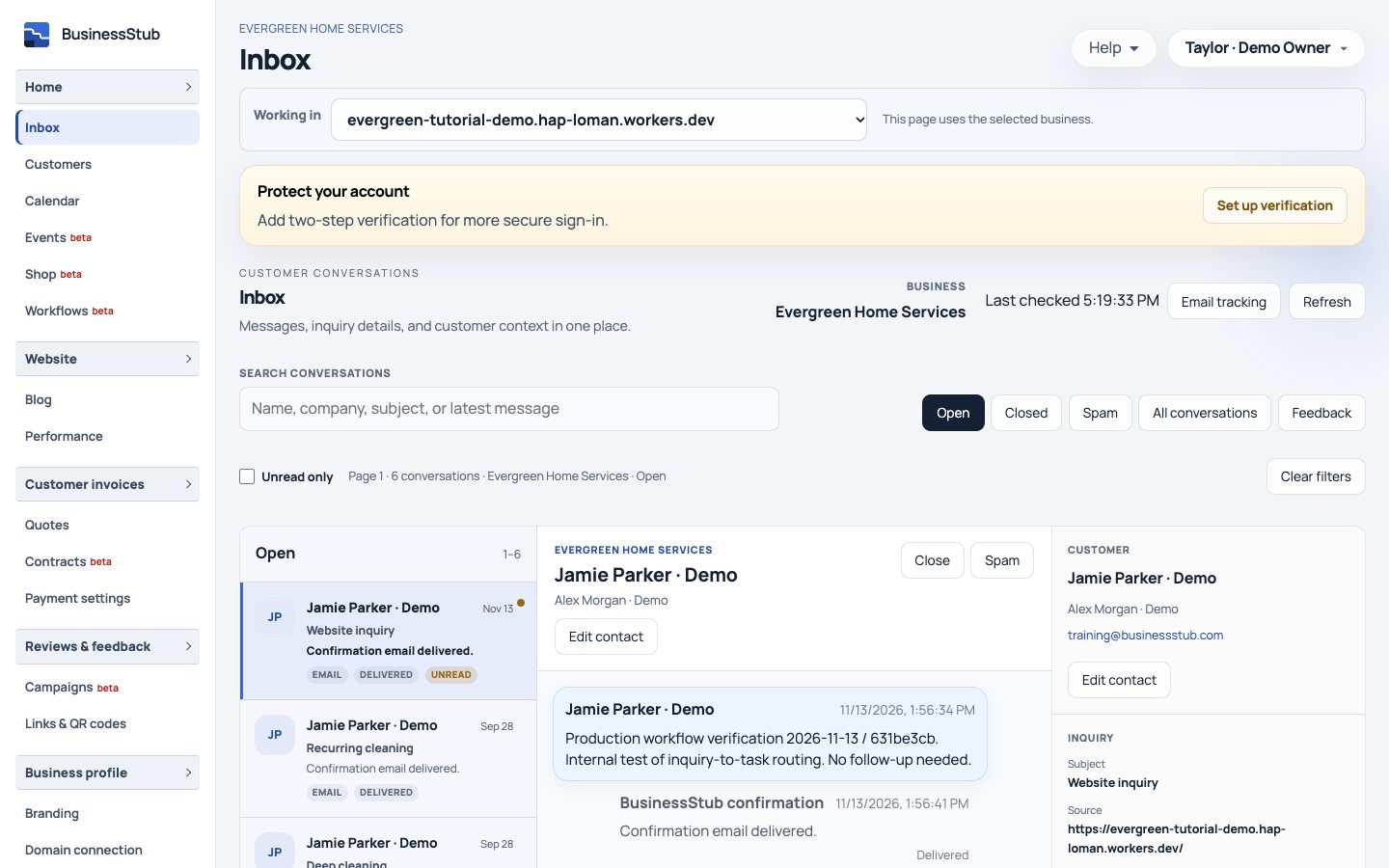
Open the case in Inbox, read what the customer asked for, and keep private team notes separate from the reply. Move the case forward as the work happens, then record how it was resolved.

Need a hand?

Tell us the business, page, what you expected, and what happened instead. Please leave out passwords and private customer details.

Explore common fixes →